Your first day in Service VIN: a tour
A five-minute tour of the dashboard: what each nav section does and where your day actually happens.
Getting started6 in this section
The short answer
What should I do on my first day in Service VIN?
Take the five minute tour first. The left nav is the shop in order: Inbox for conversations, Leads for inquiries, Quotes and Invoices for money, Jobs and Calendar for work, Settings for everything that feeds them. Set your shop profile and your service catalog before anything else, because every other screen reads from those two.
Related feature
AI setup assistant for shop software is the page about what this article sets up.
Service VIN runs your whole shop — sales, production, inventory, and the AI crew — from one sidebar. Where you land depends on your role: owners and managers land on the Dashboard, a shop-at-a-glance view of open quotes, outstanding balances, active jobs and reorder alerts. Techs and installers land on My Work, which shows only the jobs on their bench and what's coming up.
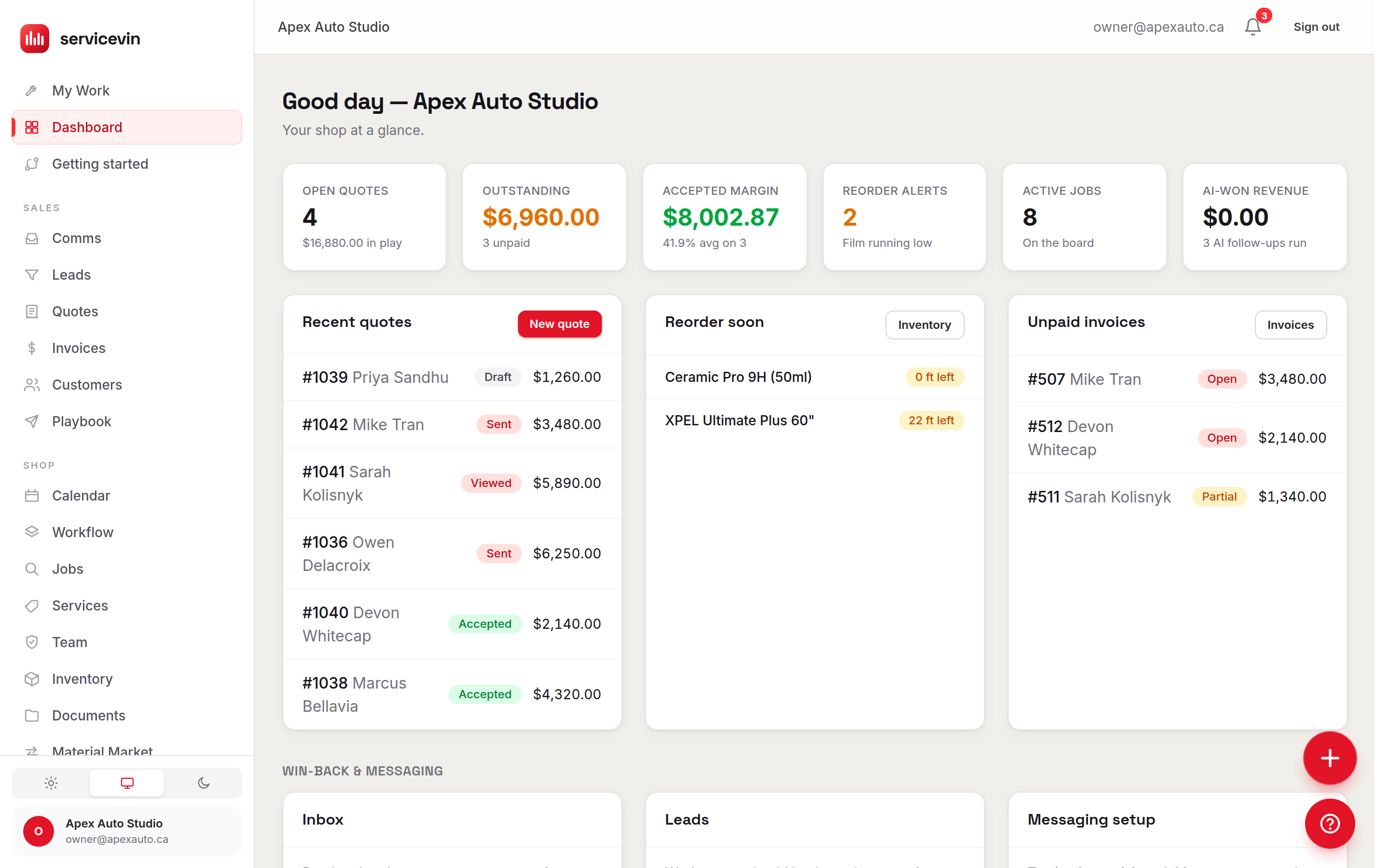
The sidebar, section by section
Stuck anywhere? Ask Dash.
The ? button in the bottom-right corner opens Help & Support on any page. The Ask Dash tab is a copilot that can answer questions about your own account — "how many quotes are still open?" — and even change settings for you after you approve.
A sensible first hour
- 1
Add your services
In Services, enter what you sell with real prices and costs — quotes, invoices, jobs and online booking all read from this catalog.
- 2
Add your bays
Under Services → Stations, list your bays or work areas. The calendar and scheduler use them to know your true capacity.
- 3
Invite your crew
In Team, add each person, then use the Access tab to invite them to log in. Techs get a focused view; managers get everything.
- 4
Set your look
In Settings → Branding, upload your logo and pick an accent colour — it shows on quotes, invoices, emails and the customer portal.
Common questions
Why does my installer see a different, smaller menu?
Navigation is role-based. Anyone without the manager permission sees only My Work, Calendar, Workflow, Documents and Help — their whole day, none of the admin.
Can I run more than one shop?
Yes. If your account belongs to multiple shops, a shop switcher appears in the sidebar; every page shows only the active shop's data.