Build a quote in Service VIN: margin
Build quotes with the margin computed live, send a link the customer can approve online — with optional add-ons, a Last Offer and a deposit — and let accepted quotes convert themselves.
Sales & front office10 in this section
The short answer
How do I build a quote in Service VIN?
Add services from the catalog and the quote costs itself from your real material and labour as you go, so projected profit is on screen before you send anything. The customer gets a link they approve on their phone, with optional add-ons and a deposit, and an accepted quote becomes a job and an invoice.
Related feature
live margin quoting is the page about what this article sets up.
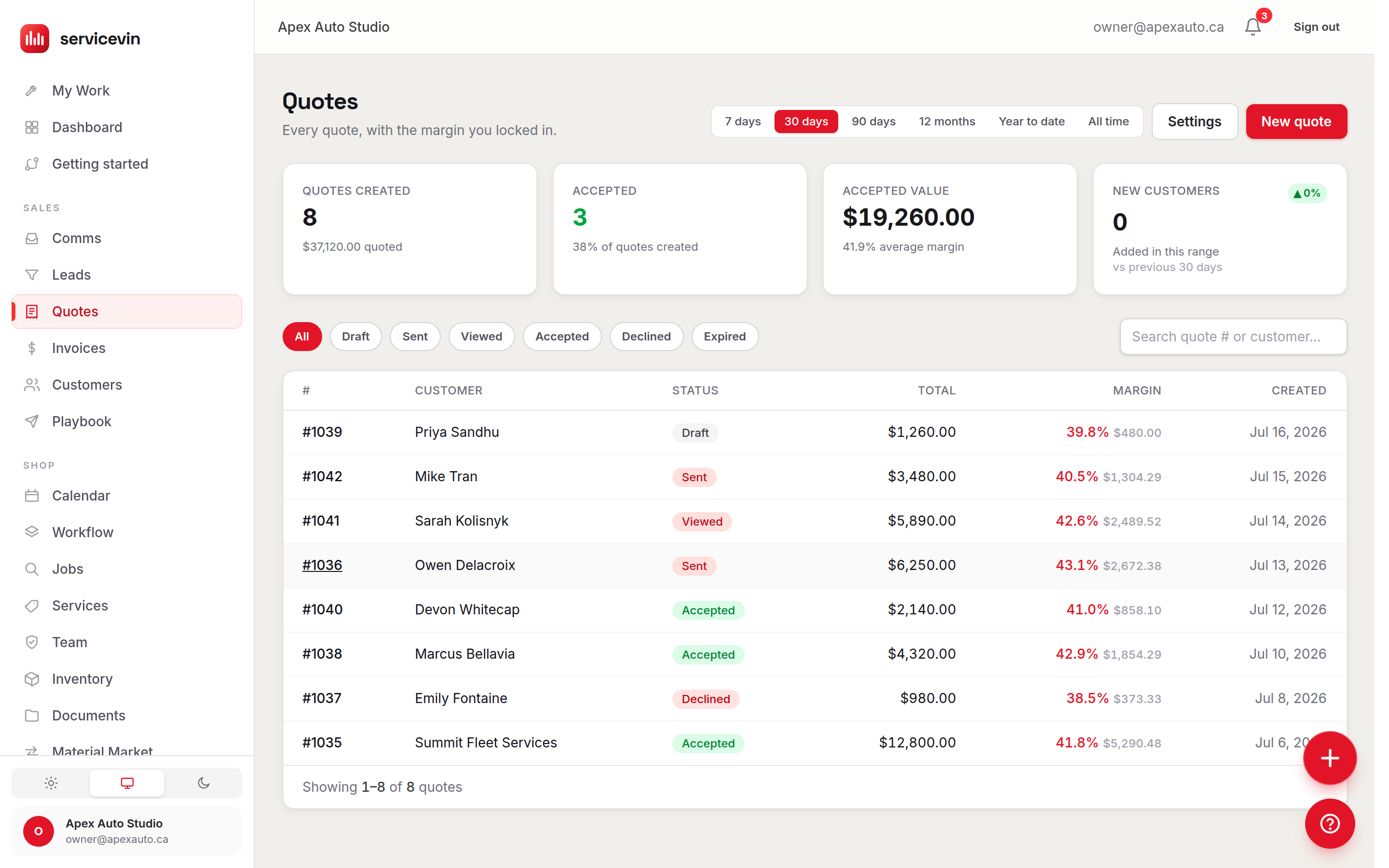
The Quotes list shows every quote with its status, total and — the part most tools hide — the margin you locked in, color-coded by health: green is healthy (50%+), blue is OK (30–50%), amber is thin (under 30%), red is a loss. The builder recomputes margin on every keystroke as you add service, material and custom lines, so you see profit before the customer sees a price.
The selling extras are on Growth and up
Package groups, tick-box optional and recommended lines, bundle savings and review clips on quotes are part of Growth. Every plan can build, send and get a quote approved — Essentials sends one flat total. If you were already using any of these before they moved, your shop keeps them: see Plan & billing.
Beyond lines and prices, a quote can carry the whole close: mark lines as optional add-ons the customer can tick on at approval, set a deposit to book, attach saved Google reviews for social proof, and arm a Last Offer — a discount shown only if the customer moves to decline. Add a customer-facing introduction, staff-only internal notes, and a Valid until date; common jobs can be saved as, and started from, a template.
Send quote to customer texts and/or emails a secure "view & approve" link to the customer portal, where they approve, pick add-ons, claim the Last Offer and pay the deposit (deposit payment needs Stripe configured). You can also copy the share link and send it yourself. A lapsed quote can't be sent or approved — use Extend validity on the quote page first.
Set your defaults once, in Quote settings
- 1
Open Settings → Quotes
Reachable from the Settings button on the Quotes page.
- 2
Default deposit
None, a percent, or a flat amount — seeded onto every new quote (editable per quote), with an optional "encourage the deposit to book" switch.
- 3
Introduction & default terms
The customer-facing copy every quote starts with.
- 4
Auto-convert accepted quotes
On by default: the moment a quote is accepted, Service VIN creates the invoice and an unscheduled job for it automatically. Turn it off to keep converting by hand.
- 5
Estimate reminders
Enable automatic follow-ups and set the cadence as days-after-sent marks (e.g.
3, 7, 14). Reminders re-send the approve link to quotes still sitting at sent/viewed.
Troubleshooting
Sending fails with "This quote's valid-until date has passed."
Why: The portal refuses to approve a lapsed quote, so the app won't send a dead link.
Fix: Use Extend validity on the quote page to pick a new date, then send again.
A customer accepted their quote but no invoice or job appeared.
Why: The auto-convert toggle is off, or was off when they accepted.
Fix: Open the accepted quote and use its Create invoice / Schedule job actions — and re-enable auto-convert in Settings → Quotes for next time.
Common questions
Can the customer see my costs or margin?
No. Costs, margin and internal notes are staff-only — the portal shows the customer prices, totals, optional add-ons and your introduction, nothing else.
What exactly is the Last Offer?
A walk-away saver: a discount (percent or amount, with an optional message) the portal reveals only if the customer starts to decline. Accept it and the quote closes at the reduced price; customers who approve normally never see it.
How do I know if the customer even opened the quote?
The quote page shows "Customer opened it …" once the link is viewed, and the status moves from Sent to Viewed.