How do you import your price list from a PDF?
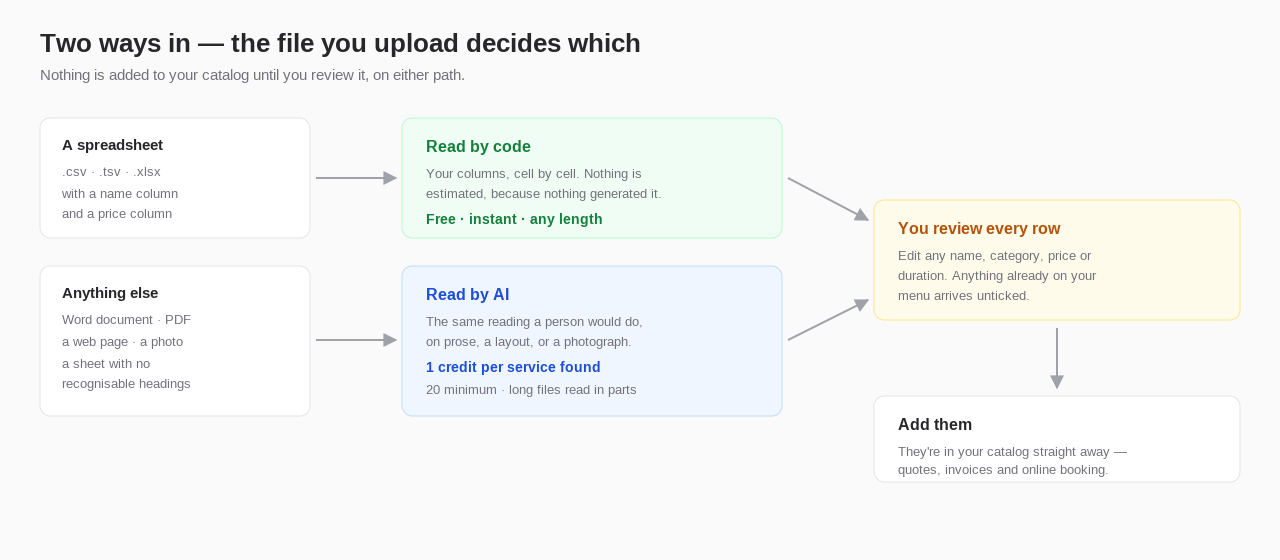
Bring your whole catalog across from a spreadsheet, a document, a PDF, your website or a photo — plus your install-rate sheet and your distributor's film price sheet. A spreadsheet is read column by column, for free.
Jobs & the shop floor40 in this section
- Web
The short answer
How do I import my price list into Service VIN?
Hand it over in whatever form you have it: a spreadsheet, a document, a PDF, a link to your own website, or a photo of the wall menu. A spreadsheet is read column by column at no cost however long it is. You review what was read before a single service is created.
Related feature
shop software data import is the page about what this article sets up.
Typing a price list in twice is the worst hour of setting up new software, so Services → Import doesn't ask you to. Point it at wherever your prices already live — the CSV your old system exported, the workbook you've kept for years, a Word document, a PDF, your own pricing page, or a photo of the printed menu — and it builds your catalog from it. You review every row before anything is saved. (Customers, vehicles and job history come in through Import data.)
Answer two questions first
- 01
How are your prices set?
One price per service — the same whatever turns up. A price per vehicle size — car, coupe, SUV, truck each have their own. A starting-from price — what you advertise, with the real number quoted per job. Your answer picks the right template and tells an AI read how to treat the numbers it finds.
- 02
Do those prices include tax?
Most shops quote before tax. Saying so keeps the importer from reading a tax-inclusive figure as your base price — the most common reason imported prices come in slightly high.
Then: start from the template
- 01
Download it
On the From a file tab, press Download the template (or Download the by-vehicle template, if you price by vehicle size).
- 02
Fill in your services
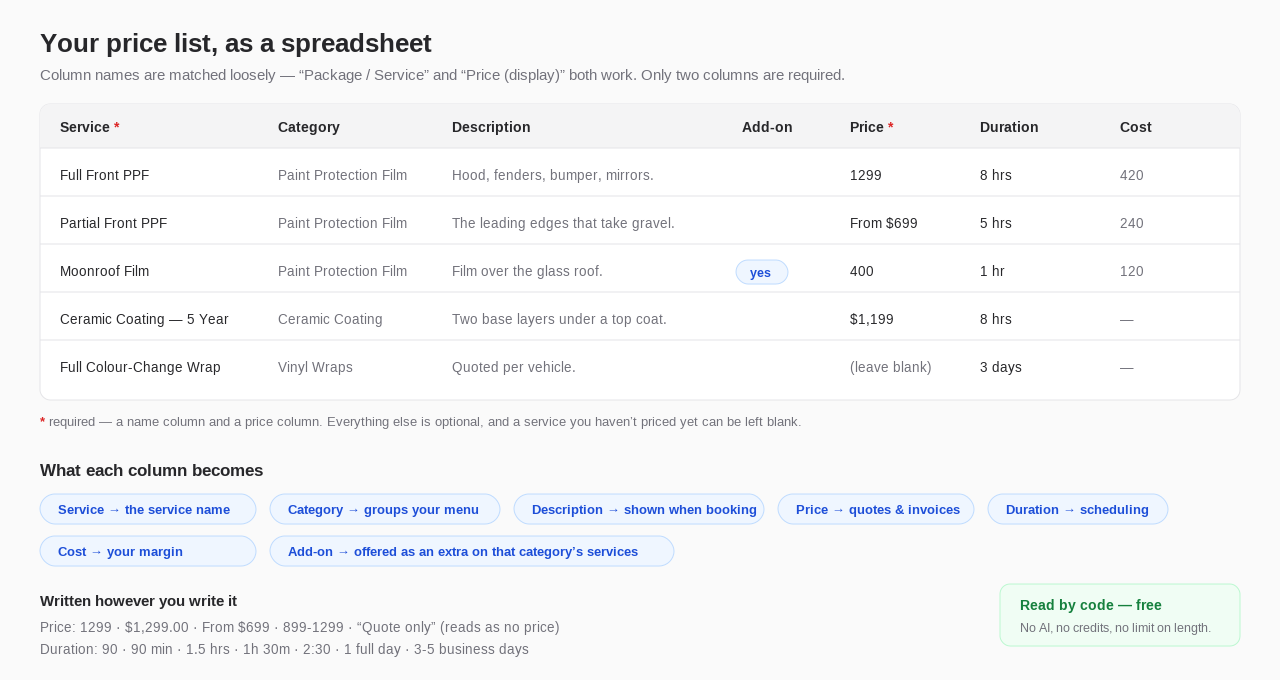
One service per row. Only two columns are required — the service name and its price. The template arrives with example rows, including a couple marked
yesin the Add-on column; delete those before you import. - 03
Save it as CSV
Excel or Numbers: File → Save as (or Export) and choose CSV. Google Sheets: File → Download → Comma Separated Values. An
.xlsxworks too. - 04
Drop it back in
Choose the file on From a file and press the read button. A sheet in the template's shape always takes the free path, so leave Have AI read it instead unticked.
- 05
Review and add
Every name, category, price, cost and duration is editable before anything is written. Untick anything you don't want, then add them. They're usable on quotes, invoices and online booking immediately.
What each column does
Write your prices and times however you already write them
Section headings work too. If your sheet has no category column, a row with a name and nothing else — PAINT PROTECTION FILM on its own line — becomes the category for the rows beneath it, which is how most people lay a price list out anyway.
One thing to check when that happens: Service VIN has a single SUV tier, so a list that splits Compact from Full-Size SUV has one more size than the catalog does. The first price is kept for SUV and the import tells you which service it happened on — set the SUV price to the one you'd actually quote before you add it.
Your add-ons come across as add-ons
Most price lists carry two different things: the services you sell, and the extras a customer adds to one — a moonroof film, a wheel-and-caliper coating, pet-hair removal. Imported as ordinary services, a sixty-service catalog arrives looking like a hundred, and your booking page offers “Headlight Restoration” as though someone would drive in for it alone.
How an extra is spotted — and where it lands
- 01
Write
yesin the Add-on columnThe surest way, and the template has the column ready. Anything else — blank included — is a service.
- 02
Or just lay your list out the way you already do
A row filed under
PPF Add-Ons,Interior ExtrasorTint Upgradesis recognised without a column at all. If you have both, the column wins: anoon a row inside an add-ons section keeps it a service. - 03
A block of extras on one line is split up
PPF Add-Ons … Moonroof film $400 | Door cups $150 | Grille — quote onlybecomes three add-ons at their own prices. Anything with no price comes across unpriced — no number is ever invented for you. - 04
They're filed with the work they belong to
An add-on under
PPF Add-Onsis saved into your Paint Protection Film category — that's what puts it in front of the customer booking a PPF job. - 05
You confirm before anything is written
The review groups rows by category, ticks the ones it read as extras, and gives each row its own Add-on switch. Read a whole category wrong? Mark all as add-ons — or the reverse — in one click.
Already imported them as services? No need to import again. On Services, open the category and switch on These are add-ons, or tick the rows and press Make add-ons. To add one by hand, use New add-on beside New service.
The other four sources
- 01
From a file — a document or PDF
A Word price list or a supplier PDF is read by AI, layout and all; a scanned PDF works too. Charged at 1 credit per service found, or 1 per 1,000 tokens read if that's more — 20 minimum, and only if services actually come back.
- 02
From a web page
Paste the address of your own pricing page. Paste the exact price-list page rather than your homepage if you have one — it's read far more deeply.
- 03
From a screenshot or photo
Up to six pictures of a printed menu, a whiteboard, or a spreadsheet on screen. Straight-on and in focus reads best; an illegible number becomes a question for you rather than a guess.
- 04
From your imported history
Once your invoices are in (Import data), Read my invoice history builds a menu from what customers actually paid — the middle price per service, with the range beside it. It runs on your own data, so it costs nothing.
Importing twice is safe. Any name already in your catalog arrives unticked and badged Already in catalog, and is skipped even if you re-tick it. An import never quietly reprices a service you've since tuned by hand — to replace one, rename or delete the old row first.
What an import doesn't do: it creates services, not packages — bundles it spots are listed for you with a pointer to Packages. It also doesn't set materials, bays or photos — open any service afterwards, or run the bulk photo pass over the whole catalog.
Install rates and film price sheets
Two more importers work the same way.
- Install rates — Services → Install rates → Import rates reads your pay sheet (a spreadsheet, CSV, PDF, document or a photo of the sheet on the wall). Download the blank sheet — or the one with a column per vehicle size — then Read the sheet. Every row shows which service or package it landed on; only strong matches are pre-ticked. Rates you already have are left alone unless you choose to overwrite them. A spreadsheet is read exactly and for free.
- Film price sheets — Inventory → Import price sheet turns the CSV your distributor emails (XPEL, 3M, SunTek, STEK or anyone else) into products with real cost per foot. Press Preview import, fix any column it matched wrong, then import. It adds new codes and updates the cost on matched ones — it never deletes products or touches rolls or stock.
Import a spreadsheet for free
- 1On Services, press Import a price list (or open Services → Import). (button: Import a price list)
- 2Choose From a file. (tab: From a file)
- 3Download the template, fill it in, and save it as CSV. (link: Download the template)
- 4Choose your file. (button: Choose files)
- 5Press the read button — a spreadsheet costs No credits. (button: Read this file)
- 6Check every row, untick what you don't want, then add them. (row: Service row)
Troubleshooting
“No column looked like a service name, and none looked like a price.”
WhyYour headings didn't match anything the importer recognises — often a merged title row, or columns named something like Item # and Amount excl..
FixThe message lists the headings it found. Rename one to Service and one to Price, then import again — it's free. Or tick Have AI read it instead to spend credits reading it as it is.
Prices came in blank.
WhyThe price column held text the importer won't guess at — “Call for pricing”, “TBD”, or a formula that never saved its result.
FixA blank price is deliberate: it never invents one. Type the prices into the review table before adding, or fix the sheet and import again.
The read stopped before it finished.
WhyA long document read by AI can run past the time limit on one of its parts.
FixEverything read up to that point is kept — add it, then run the import again for the rest. If it keeps stopping, export the prices to CSV: that path has no time limit and no cost.
Durations look wrong.
WhyA bare number in a vaguely-named column is ambiguous — 2 under Time could be hours or minutes.
FixName the column Hours or Minutes, or write the unit in the cell (2 hrs). Every duration is editable in the review either way.
A service came in twice.
WhyTwo rows in your sheet share a name, or the same file was imported twice.
FixRepeats inside one file are dropped and reported. Names already in your catalog arrive unticked and are skipped.
An install rate landed on the wrong service.
WhyYour pay sheet's name ("Full Front") matched more than one catalog entry, or matched weakly.
FixPick the right service or package in that row's dropdown before saving — weak matches are left unticked for exactly this reason.
Common questions
Do I have to use the template?
No — it's the surest route, not the only one. The importer reads plenty of layouts, including exports from other shop software. The template just guarantees the free, exact path on the first try.
Should I price by vehicle size or use one price?
Use per-vehicle columns when the work genuinely differs by what's on the lift — PPF, ceramic and tint usually do. Use one price when it doesn't, and a starting-from price when you advertise a number but quote the real one per job. You can mix.
Why did my spreadsheet cost credits?
Either a heading it needed wasn't recognisable, or Have AI read it instead was ticked. If no column looked like a name and a price, the import stops before spending anything and tells you which headings it found — rename one to Service and one to Price and it reads for free.
What does an AI import actually cost?
1 credit per service it finds, with a 20-credit minimum per scan, charged only once usable services come back. A failed or empty read is free to retry. A very long but sparse source — a sixty-page PDF with three prices in it — is priced by how much had to be read instead.
Can I import a price per vehicle size?
Two ways. Give each size its own column (Car, Coupe, SUV, Truck, Van, Motorcycle, Commercial, Exotic) — headings like SUV Price or Price (SUV) work too. Or leave the size in the service name (Full Front - Car, Full Front - Truck) and the import folds those rows into one service priced per vehicle.
My sheet has extra columns — SKU, notes, warranty. Is that a problem?
No. Columns it doesn't need are left alone and listed back to you, so you know exactly what was and wasn't read.
What's the difference between an add-on and a service?
Only where it's offered. An add-on is a full service underneath — its own price, cost, duration and bays — but it stays off your main menu and appears as an extra when a customer books any service in its category.
Can I undo an import?
There's no single undo, but nothing is written until you add the rows, and you choose every row that goes in. To remove services afterwards, delete them from the Services catalog.